Video and projection
4.1Video and text cues
A video cue plays a movie (anything FFmpeg can play) or a still image: PNG, JPEG, WebP, GIF, TIFF, BMP or SVG. Stills show for a set time, or until stopped. An SVG is drawn at the size it will be shown, including the largest scale its geometry and animation reach, so logos and line art stay sharp. Time & Loops has start and end trims, loops and hold last frame. The Audio tab has the soundtrack's main and output faders, and I/O its file and routing; the soundtrack plays through the mixer like an audio cue.
Geometry
- Stage: which output the picture goes to. Without one, the first stage is used.
- Fit: Fit shows the whole picture (letterboxed), Fill covers the stage and trims the overflow, Stretch fills it exactly, and Native size uses the file's own pixels.
- Layer (higher draws on top) and opacity.
- Position, scale and rotation. Position is a percentage of the stage:
X 25%moves the picture a quarter of the stage to the right. Lock proportional to scale both axes together. - Crop: trims a percentage from the left, top, right and bottom. The rest of the picture stays where it was.
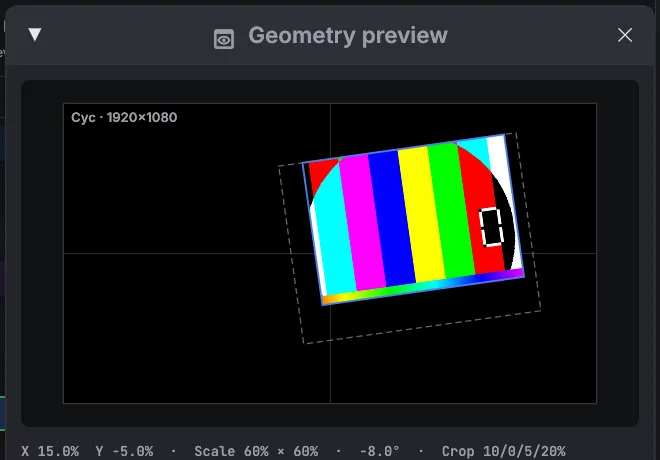
Geometry preview (, or Preview on the Geometry tab) draws the selected cue's stage with the picture in place, without opening a projector output. In edit mode, drag in the preview to move the picture, scroll to scale it, and double-click to centre it. For a Fade cue that changes geometry, the preview shows where the fade ends, with the starting position as a dashed outline.
Camera cues
A Camera cue shows a live camera (a webcam, a USB or HDMI capture card) as a layer on a stage, with the same Geometry tab as video: position, scale, rotation, crop, opacity and layer, and Fade cues can move and fade it. On the Camera tab pick the device and, if you need it, the capture size; Mirror flips the picture like a selfie view. Show for 0 keeps it on until stopped. The device and size are used the next time the cue starts.
Text cues
Text cues show typed text on a stage: titles, surtitles, captions, or a countdown for the crew. The Geometry and Animation tabs work as they do for video, and Fade cues can move and fade text. Changes on the Text tab appear at once on a cue that is showing.
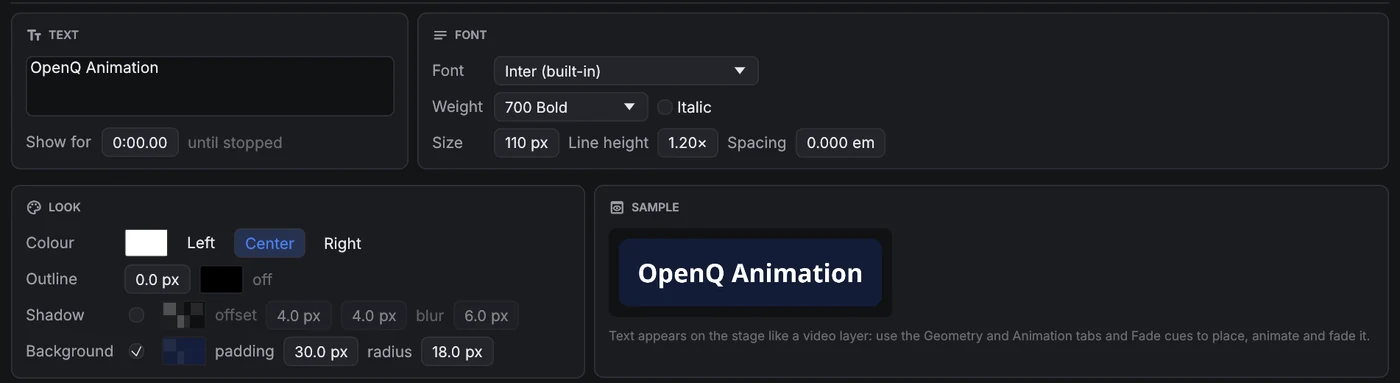
| Setting | What it does |
|---|---|
| Font | Any font installed on the computer. Type in the list to search. Inter (built-in) is always available. |
| Weight · Italic | Thin (100) to Black (900). Weights the font doesn't include are greyed out, and the nearest installed one is used. |
| Size | Letter size in stage pixels: 96 px on a 1080-line stage is about a tenth of its height. |
| Line height · Spacing | Distance between lines (as a multiple of the size), and extra space between letters in em. |
| Colour · alignment | Text colour and transparency; left, centred or right lines. |
| Outline | An edge around every letter, in stage pixels, with its own colour. Keeps text readable over busy video. |
| Shadow | A soft drop shadow: colour, offset right and down, and blur. |
| Background | A box behind the text: colour and transparency, padding (space around the text, in stage pixels) and radius for rounded corners. Good for captions and surtitles over video. |
| Show for | Time on screen; 0 shows it until stopped. |
Text is laid out properly for every language. Pairs like AV are kerned, ligatures are used, and right-to-left scripts work. Characters the chosen font lacks, such as emoji or Chinese, are drawn with another installed font. Text is rendered at twice the stage resolution, so it stays sharp when it is scaled up and smooth when it is scaled down.
Text is prepared in the background before its GO, and again after you change how it looks, so starting or editing a text cue never holds up the show. Colour changes, moves and animations need no preparing at all. After a change to the text, font or size of a cue that is showing, the new version replaces the old one a moment later.
The show file stores the font's name, not the font itself. Install the same fonts on every computer that plays the show. If a font is missing, the Text tab says not installed here and a fallback font is used.
Animation
The Animation tab of video and text cues moves, scales, rotates, crops, fades and recolours the layer with keyframes. The animation starts when the cue starts and follows the cue's own clock: pausing the cue pauses it.
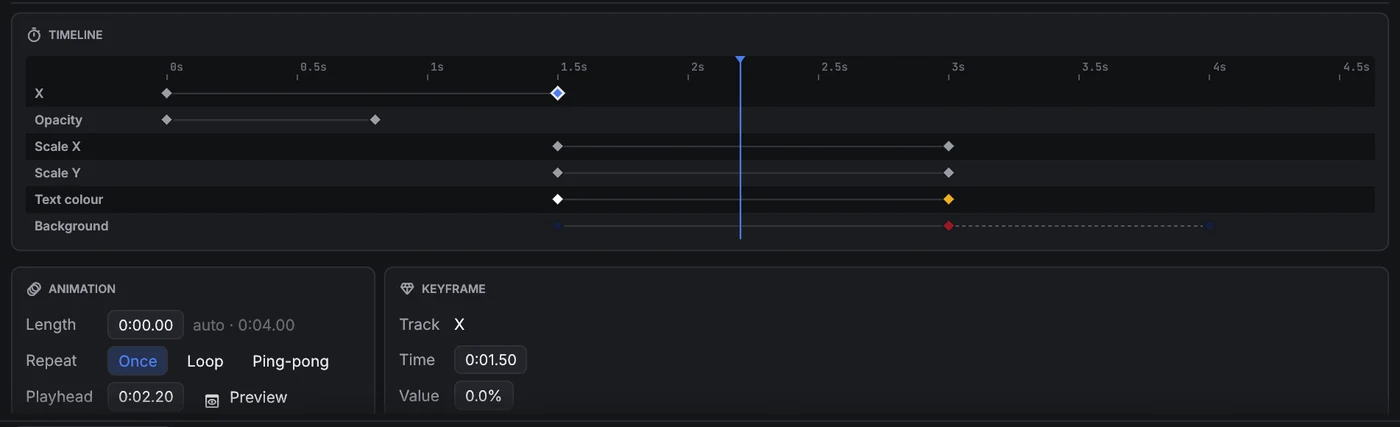
- Add track picks a property. Its first keyframe sits at the playhead and changes nothing, so you can then set the values you want.
- Timeline: click the ruler or a row to move the playhead. Click a keyframe to select it, and drag it sideways to change its time. Double-click a row to add a keyframe there.
- Keyframe card: the selected key's time, value and Then, which says how the value moves on to the next key: Hold (stays, then jumps), Linear, Ease in, Ease out, Ease in-out, or a Custom curve (a cubic Bézier, written like CSS: x1 y1 x2 y2). Key at playhead adds a key with the value the track has at the playhead.
- Length is one pass of the animation; 0 means it ends at the last keyframe. A dashed amber line marks it on the timeline. Repeat: Once holds the last values, Loop starts again, Ping-pong plays forwards, then backwards.
- Turn on Preview to see the layer in the geometry preview as it looks at the playhead. A dashed outline shows the cue's own position.
| Property | Value | How it combines with the cue |
|---|---|---|
| X · Y | % of the stage | Added to the Geometry tab's position. |
| Scale X · Scale Y | % | Multiplies the Geometry tab's scale: 200% doubles it. |
| Rotation | degrees | Added to the rotation. 360° is a full turn. |
| Crop left · top · right · bottom | % of the picture | Added to the crop. Animate it for wipes and reveals. |
| Opacity | % | Multiplies the cue's opacity. |
| Tint | colour | Multiplies the picture's colours. White leaves it alone. A tint can only darken or recolour: white turns into the tint colour, black stays black. |
| Text colour · Outline colour · Shadow colour · Background | colour (text only) | Replace the colours on the Text tab. |
Because the values are relative, a Fade cue or a change on the Geometry tab still moves or fades the whole animated layer. For example, an animation can bob a logo up and down while a Fade cue slides it across the stage.
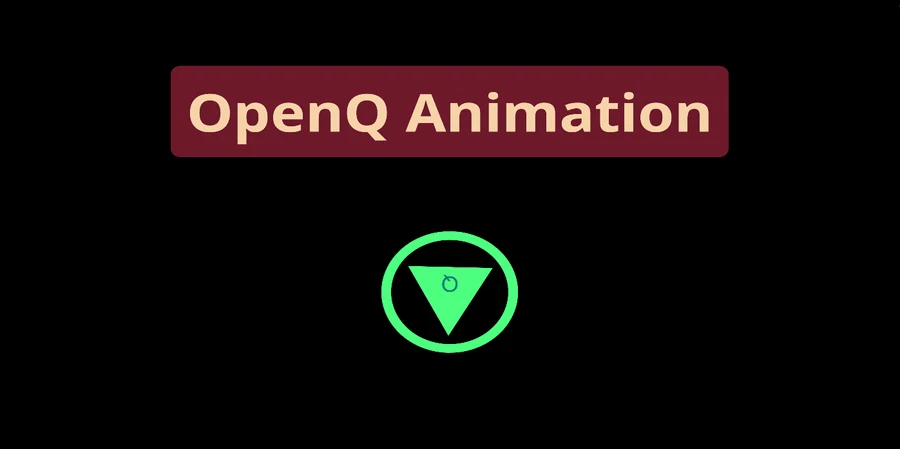
Animations are worked out live while the stage draws: a few sums per layer, with the moving, scaling and colouring done by the graphics card. Nothing is rendered or decoded ahead of time, so animating a layer costs about the same as showing it still. Changes you make appear at once, even on a running cue, at any stage resolution. Blur and colour changes are video effects, which a Fade cue can animate.
Video FX

Video, camera and text cues have a Video FX tab, a stack of effects on the picture. Add, reorder and switch them like audio effects. They are drawn by the graphics card as the stage draws, so they cost almost nothing and change live, even on a running cue.
| Effect | Settings |
|---|---|
| Colour controls | Brightness, contrast, saturation (0 = black and white). |
| Exposure | Exposure in stops, gamma. |
| Hue | Turns every colour round the colour wheel. |
| Colourise | Monochrome in a colour of your choice. |
| Sepia · Invert | Amount. |
| Posterise | Number of levels per colour. |
| Threshold | Black and white cut at a brightness level. |
| Vignette | Darkens the edges: radius, softness, amount. |
| Blur · Pixellate · Sharpen | Radius or block size in the picture's own pixels. |
| Chroma key | Makes a colour transparent (green or blue screen on a camera cue): key colour, threshold, softness and spill, which takes the green cast off the edges that remain. |
Colour effects run top to bottom; Blur, Pixellate and Sharpen change how the picture is read, so they always act first. The effects are applied after the layer's tint and opacity, and work with every blend mode.
4.2Stages and projection
A stage is one video output, such as a projector or a screen. Add stages in . Each has a name and a canvas size in pixels.
Sending a stage to a display
In , or with the Output dropdown in Settings → Stages, choose Window or one of the connected displays. A stage set to a display opens fullscreen on that display, and it opens there again when the show is loaded. If a display isn't listed, use Refresh displays. In a stage window, double-click or press F11 to toggle fullscreen.
Mapping
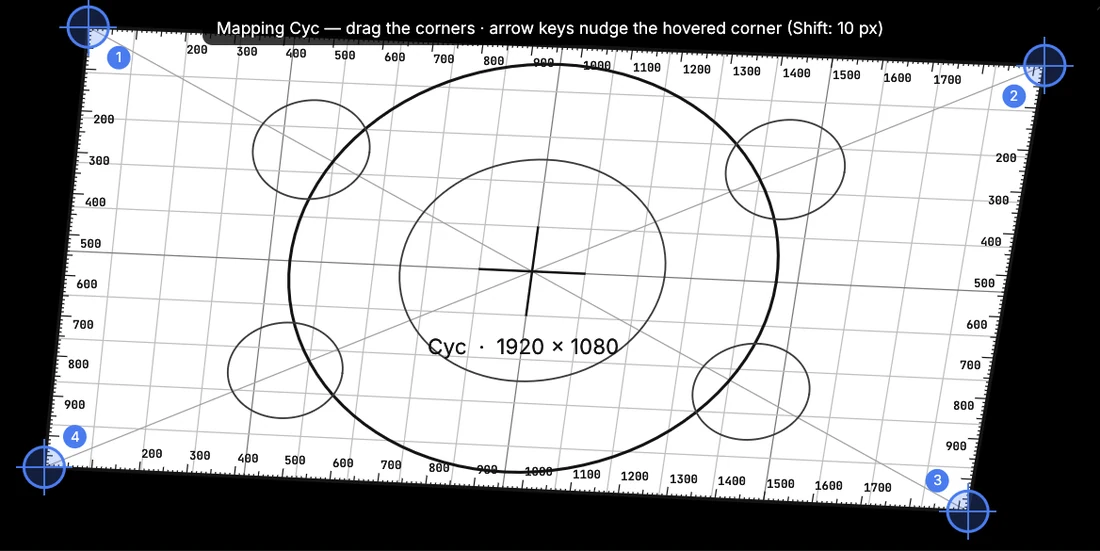
Edit mapping shows a test pattern on the stage: a white canvas with a square grid, pixel rulers along every edge, circles, diagonals and a centre cross, all drawn through the mapping, plus four numbered corner pins. Drag the corners to fit the picture onto the screen (keystone correction), or hover a corner and nudge it with the arrow keys: one pixel at a time, or ten with Shift. Reset mapping puts the corners back.