Audio
3.1Audio cues
Time & Loops
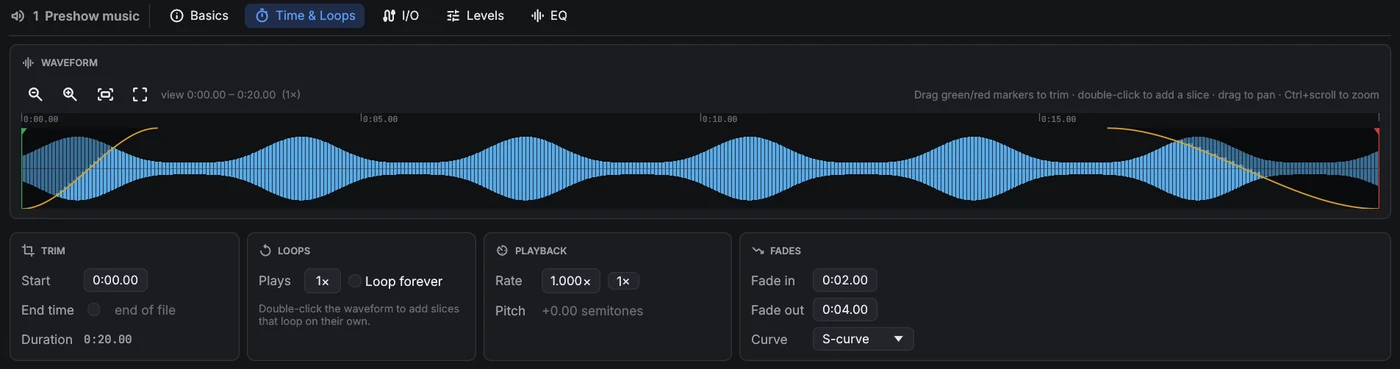
- Trim: drag the start and end markers, or type the times. Drag the waveform to pan, and use Ctrl+scroll to zoom. A line shows the playback position while the cue runs.
- Loops: set a play count, or loop until stopped.
- Playback: the rate is varispeed. The pitch changes with the speed, like a tape machine.
- Fades: a fade-in from silence when the cue starts and a fade-out to silence at its end, with a choice of curve, without a separate Fade cue. The fade-out needs a known end, so it doesn't happen while the cue loops forever; with a vamping slice it plays after the Devamp.
- Slices: double-click the waveform to add a slice marker. Drag it to move it, and right-click to
delete it. Each slice plays a set number of times, or loops until a Devamp cue (or the OSC
message
/cue/<n>/devamp) releases it. The current pass then finishes and playback carries on. Use this for music that has to vamp until an actor's line.
I/O
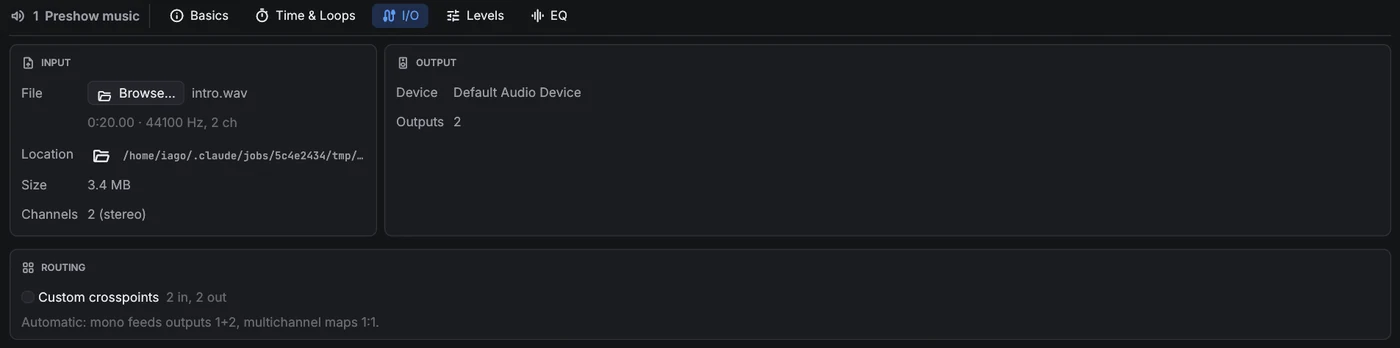
- Input: the media file, with its length, format, location on disk (and a button to show it in the file manager), size and channel count. Browse… replaces the file.
- Output: the audio device the cue plays on and its number of outputs (set in Settings → Audio).
- Routing: automatic, or a crosspoint matrix from the file's channels to the device outputs. Each crosspoint has its own level in dB, so a stereo file can feed eight speakers. Or switch to Object audio and place the channels in the room (below).
Object audio
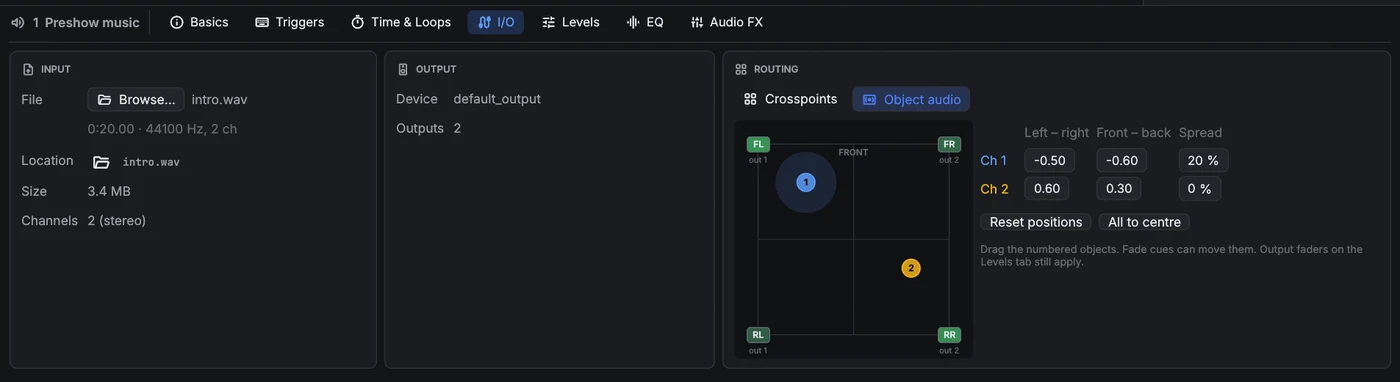
Object audio routes sound by where it should come from instead of by output. Pick Object audio in the Routing card: every channel of the file becomes an object you drag around the room (or type its position). The speakers nearest an object play it loudest; the level falls 6 dB each time the distance doubles, and the total power stays the same wherever the object is, so moving it never changes its loudness. Spread widens an object from a point (0 %) to the whole room (100 %). Output faders on the Levels tab still apply, and Mic cues and video soundtracks can use object audio too.
The room is set once per show in Settings → Audio. A Fade cue can move the objects, for a sound that flies across the room. Moves are smoothed, so dragging an object on a playing cue doesn't click.
Levels
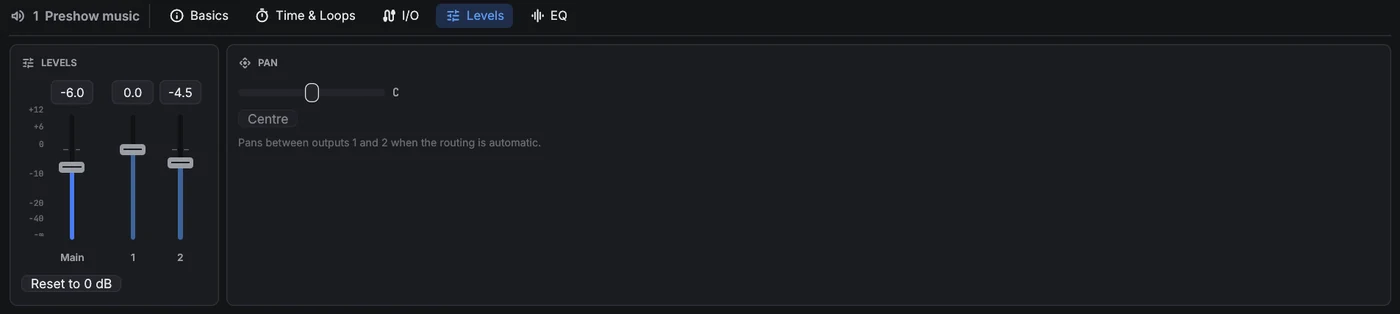
The Main fader sets the cue's level. Next to it there is a fader for each output of the audio device, which trims that output after the routing matrix. Drag a fader, or type a value in the box above it; double-click a fader to return it to 0 dB. Pan moves the sound between outputs 1 and 2 while the routing is automatic.
EQ
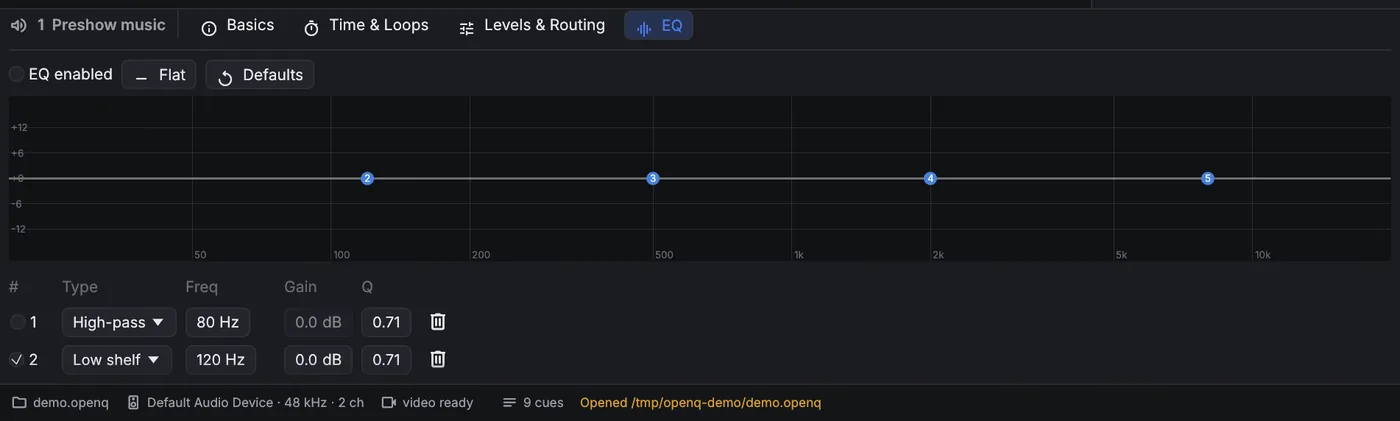
Band types are high-pass, low shelf, peak, high shelf and low-pass. EQ enabled turns the whole EQ on and off.
Audio FX
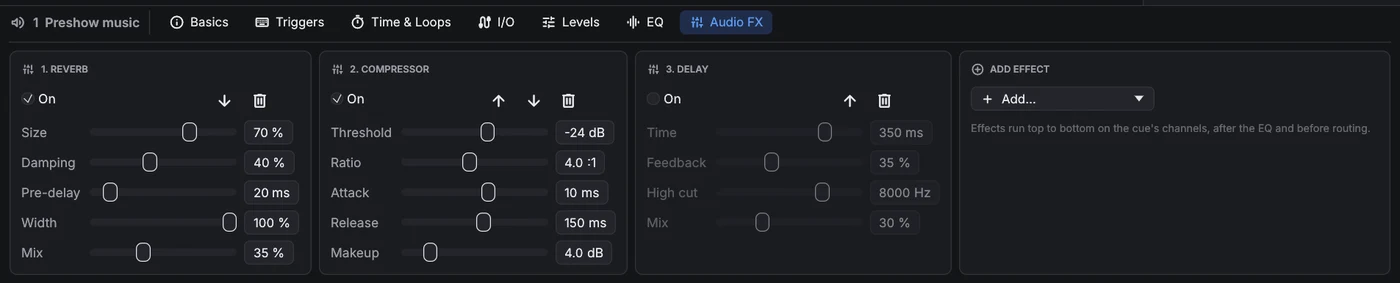
Audio, Mic and video cues have an Audio FX tab: a chain of up to eight effects that run top to bottom on the cue's channels, after the EQ and before routing. Add… puts a new effect at the end; the arrows change the order, On bypasses an effect without losing its settings.
| Effect | Settings | Use |
|---|---|---|
| Delay | time, feedback, high cut, mix | Echoes; the high cut darkens each repeat. |
| Reverb | size, damping, pre-delay, width, mix | Room sound for dry recordings or voices. |
| Compressor | threshold, ratio, attack, release, makeup | Evens out level; all channels move together. |
| Limiter | ceiling, release | Never lets a peak past the ceiling. |
| Gate | threshold, range, attack, hold, release | Turns a microphone down between phrases. |
| Distortion | drive, tone, output, mix | Radio, telephone or overdriven sounds. |
| Chorus | rate, depth, delay, feedback, mix | Thickens and widens a sound. |
| Bitcrusher | bits, downsample, mix | Lo-fi, retro game sounds. |
Level, output fader, pan, EQ, effect, routing and object changes are heard straight away on a playing cue, so you can tune them during a run. Reverb and delay tails carry on through an edit.
Mic cues
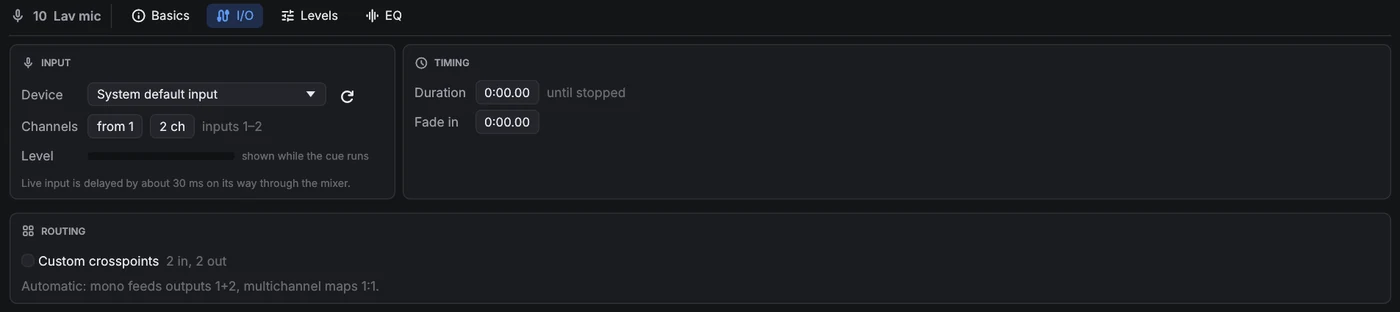
A Mic cue sends a live input (a microphone, a line input, a playback machine) through the OpenQ mixer, so it gets the same Levels faders, pan, EQ and routing as an audio cue, and Fade cues can fade it. On the I/O tab choose the input device and which of its channels to use, for example inputs 3–4 for a stereo pair. A duration of 0 keeps the input open until the cue is stopped, and the fade in brings it up from silence. The input reaches the outputs about 30 ms late, which is too little to hear as an echo in most rooms.