Safety and help
7.1Crash safety
A show has to carry on when something goes wrong. OpenQ keeps problems as small as it can and gets your work back if it does go down.
Autosave and recovery
While a show has unsaved changes, OpenQ keeps a copy of it every few seconds. Saving the show, or quitting normally, removes the copy. If OpenQ or the computer goes down, the next start offers the copy back:
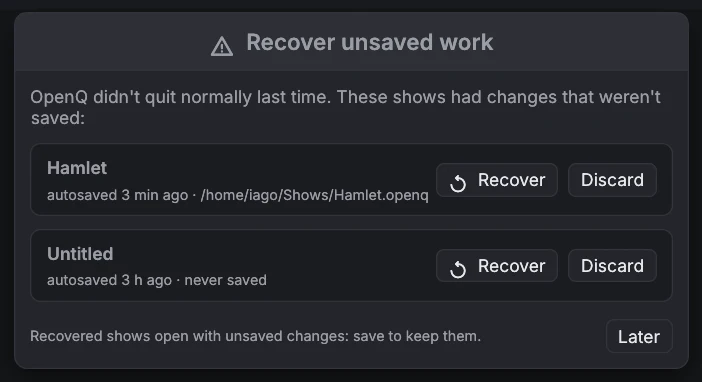
- Recover opens the copy with unsaved changes. Save it to keep them (it saves to the show's own file).
- Discard deletes the copy for good.
- Later closes the window; it asks again next time.
Saving a show writes a temporary file first and swaps it in once it is safely on disk, so a crash or power cut during a save leaves the previous version intact.
When something fails during a show
| What happens | What OpenQ does |
|---|---|
| The audio device disappears (unplugged, audio server restarted) | Its sounds stop and the status bar shows audio lost · reconnecting…. OpenQ tries to open the same device again every 2 seconds and carries on as soon as it is back. Video and other cues keep running. |
| A media file is damaged | That cue ends with an error in ; every other cue plays on. |
| An internal error in the cue engine | All cues stop at once, the playhead stays where it was and the log explains what happened. The next GO works as usual. |
| A cue starts itself in a loop with no time in it (a Start cue aimed at itself, or two aimed at each other) | It is held off and the log names the cue, instead of slowing the whole show down. |
| More than 256 sounds at once | Further audio cues are refused with an error in the log. |
Autosaves and crash reports live in the OpenQ settings folder: ~/.config/openq on Linux,
~/Library/Application Support/OpenQ on macOS, %APPDATA%\OpenQ on Windows, in
recovery and crash. A crash report holds what went wrong and where; please
attach it when you report a problem.
Error log. Every warning and error (engine log entries, device failures, failed saves or
opens, crashes) is also written, with the date and time in UTC, to logs/openq.log in the same
folder, so you can look back after the show. opens it. When it grows
past 2 MB it is moved to openq.old.log the next time OpenQ starts.
7.2Troubleshooting
| Problem | Try |
|---|---|
| No sound | Check the status bar. If it says no audio, pick another device in Settings → Audio. Check the master volume and the cue's level and routing. |
| A Mic cue is silent | Check the input device and channels on its I/O tab; the level bar shows whether anything arrives. On macOS and Windows, OpenQ needs permission to use the microphone. |
| Timecode triggers don't fire | Open the list's Timecode… window and check that it receives timecode at the right rate. Cues only fire while timecode runs forward through their trigger time. |
| A Camera cue shows nothing | Check the device on its Camera tab (use to look again) and the engine log. Another program using the camera can block it. |
| A cue shows a red icon | Its media file is missing or unreadable, or its target cue was deleted. If the file has moved, click Browse… on the cue's Basics tab to find it again. After reconnecting a drive, give it about two seconds to clear. |
| A video doesn't appear | Open the stage window from the Video menu. Check the cue's stage, opacity and layer, and look in for decoder errors. A graphics card can only show pictures up to a certain size (often 8192 or 16384 pixels across). OpenQ shrinks still images, SVGs and text to fit, but a larger movie is left out: convert it to a smaller size. |
| The status bar says audio lost · reconnecting… | The audio device went away. Plug it back in or restart the audio service; OpenQ reconnects by itself. To use another device instead, pick it in Settings → Audio. |
| OpenQ asks to recover unsaved work | It didn't quit normally last time. See Crash safety. |
| GO seems to do nothing | The cue at the playhead may be disarmed, or the second press may have come within double-GO protection. |
| A remote device can't find the main device | Make sure remote access is on and both are on the same network, then type the address shown on the main device. |
| "Pair this device again" (remote) | The device was removed on the main device, or its key was forgotten. Open pairing on the main device and enter the new code. |
| Something fails and you don't know why | Open : every warning, error and crash is there with its time. |
7.3License and credits
OpenQ is licensed under the Apache License 2.0.
| You may | You must |
|---|---|
| Use OpenQ for anything, commercial included: run paid shows, concerts, tours, events and installations, and be paid to program or operate them. | Keep the copyright notice, LICENSE.md and NOTICE.md with every copy. |
| Copy, change and share it. | Say in the files you change that they were changed. |
| Sell copies, changed versions or services built on it. | Not use the OpenQ name as a trademark: the license gives no right to it. |
Copyright 2026 Iago Núñez — OpenQ (https://github.com/iagonunez/OpenQ) shows the version, the license and every third-party
notice. These are the fonts (Inter, JetBrains Mono and Barlow Condensed under the SIL Open Font License; Material Symbols
under Apache 2.0; the fonts built into egui) and the open-source Rust libraries OpenQ is built from, each under its
own license. The same texts are in NOTICE.md and THIRD_PARTY_LICENSES.md next to the program.
OpenQ plays video with the FFmpeg libraries. On Windows and
macOS the installer puts a build without GPL parts inside OpenQ, with its license in the Licenses folder;
on Linux OpenQ uses the system's FFmpeg. FFmpeg has its own license. If you pass a built OpenQ on to others, use an
FFmpeg without GPL parts, or the GPL 3 covers the whole program. See NOTICE.md.